Start without me
Start without me. I'll jump in when I arrive.
Made for iPhone & iPad
The little app for things you type again.
Save your go-to replies in Toolroll. Bring them into the conversation with a tap.
Coming soon to theApp Store
Try a saved replyFree to save. One optional lifetime upgrade.
Works in apps that allow custom keyboards.
A little less repetition
The reply. The address.
The thing you always type.
Your saved replies
An interactive sketch, not an iOS screen capture.
Tap a reply. Send it. Make it yours.
A little more you
Switch to Toolroll.
Tap a snippet. Keep going.
The real thing
The conversation above is a sketch. Here's the actual Toolroll keyboard inserting a saved reply in an app's message field.
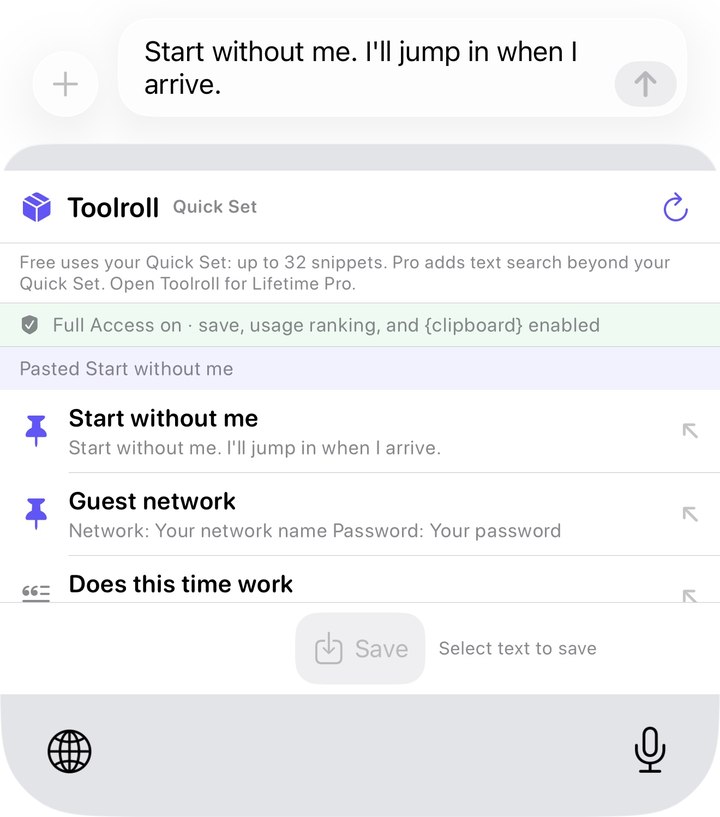
Fill-ins like {ask:Day} insert [Day] for you to replace in the host app. They do not open a Toolroll entry dialog. “Copy exact example” copies the saved template only when you ask.
Start without me. I'll jump in when I arrive.
Thanks - received. I'll follow up shortly.
I can do {ask:Day} at {ask:Time}. Does that work?
Could you send that as a file or a shared link instead of a screenshot? I can search text, not pixels.
Network: Your network name Password: Your password
Just following up on this. {cursor}
The keyboard removes {cursor} and puts the insertion point there.
In Toolroll, or from the share sheet in another app.
Tap the globe key to bring up Toolroll while you type.
Choose your saved text. It goes in at the cursor. Keep going.
iOS uses its own keyboard for passwords and other secure fields, and some apps turn custom keyboards off. The Toolroll keyboard inserts text, not files or images.
One vault, across this device
The keyboard is just one way back to your snippets.
Save text, links, images and files through the share sheet. Organize your vault with tags in Toolroll.
Find snippets from Spotlight or retrieve them in a Shortcut, within your Free or Pro reach. Your whole vault stays searchable in the app.
Pin and arrange your most useful snippets. Widgets show titles and types from your pins or a chosen tag; tap to open a snippet in Toolroll.
Free to keep. Pro for more reach.
Saving is never limited. Every snippet stays readable, searchable, editable and exportable in the app, whether or not you pay.
| What you can do | Free | Lifetime Pro |
|---|---|---|
| Save, edit, search and export in the app | Your whole vault | Your whole vault |
| Insert text from the keyboard | Quick Set, up to 32 snippets | Quick Set + whole-vault text search |
| Retrieve with Shortcuts and Spotlight | Quick Set reach | Whole-vault reach |
| Choose a widget collection | Pins or a tag within your Quick Set | Pins or a tag across your vault |
What's a Quick Set? Up to 32 snippets: your pins in the order you choose, then your most recently changed snippets. A reach limit, not a saving limit.
One optional purchase. Lifetime Pro is a one-time unlock in the app. No subscription or recurring charge. Purchase terms.
At home on iPad
Tags on the left. Your snippets in the middle. The detail you're working with, right beside them.
Same local vault idea. A little more breathing room.
View the full workspace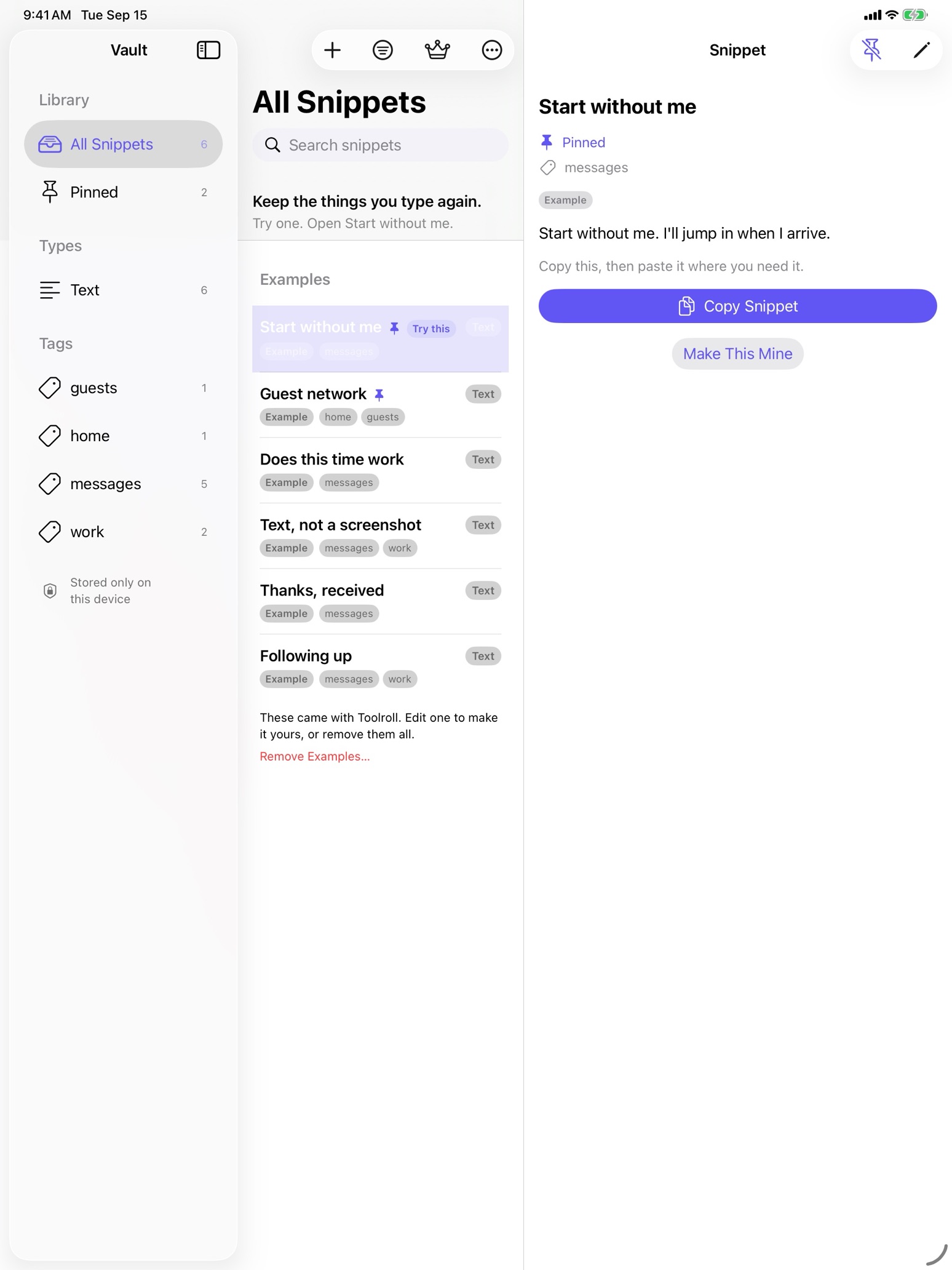
Your words, your vault
No Toolroll account.
No snippet-content server.
Toolroll has no analytics of your snippets, typing or app usage, and no advertising tracking. Export as plain Markdown, with attachment files alongside it.
Copied snippet text or images may reach other devices signed in to the same Apple Account via Universal Clipboard. Your vault itself stays on this device; this is not vault sync.
iCloud device backups are separate. Apple and RevenueCat process purchase records, including RevenueCat purchase analytics.
Make yourself at home
Add the keyboard in Settings, then give a starter snippet a try. Reading and inserting work without Full Access.
Launch notice
Toolroll itself has no account or snippet-content server. This separate website waitlist stores only your email address, only to tell you when Toolroll ships, and it is not used for anything else.